Listen to Book2Audio GO audiobooks in Music on iPhone
Sync your converted MP3 chapters from Windows with iTunes, then play them as an album in the Music app on your iPhone.
1. Find and import your MP3 chapters
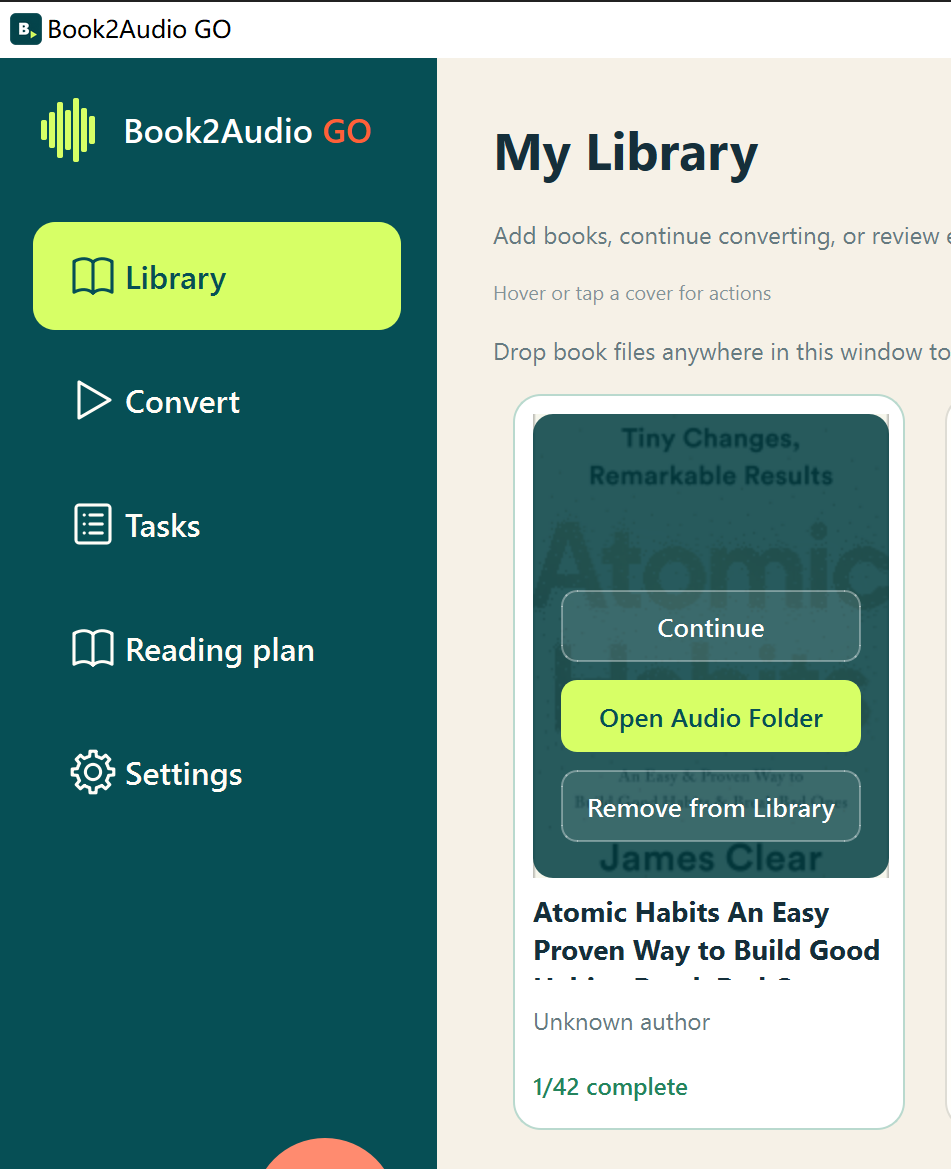
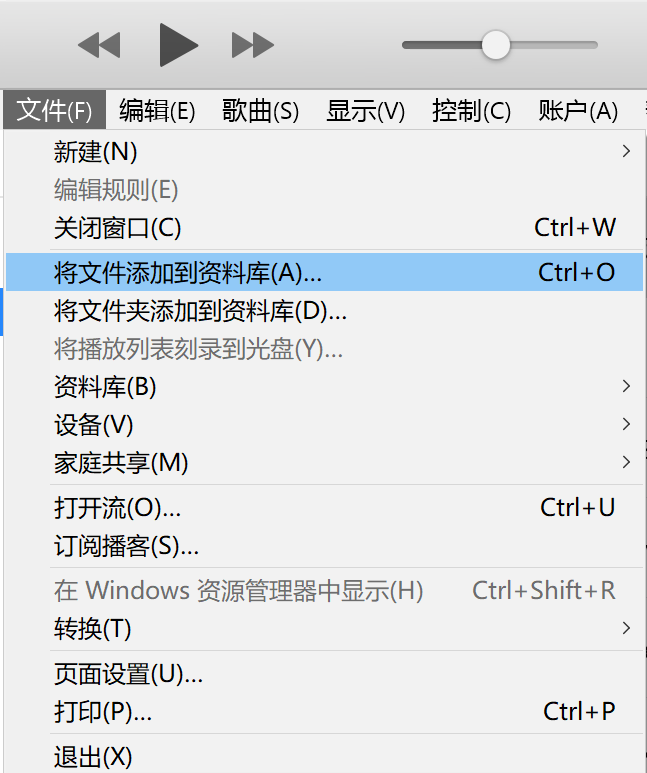
In the Book2Audio GO library, choose Open Audio Folder on the book cover. In the iTunes Music library, choose File → Add File to Library and select the MP3 files. Use Add Folder to Library for the whole book. Import chapters as music tracks with a shared album name and the correct track numbers.
2. Sync the album to your iPhone with iTunes
Connect your unlocked iPhone with a USB cable and tap Trust if prompted. Click the device icon in iTunes, select Music under Settings, and enable Sync Music. Choose selected albums, tick your audiobook, then click Apply or Sync. Wait for the transfer to finish before disconnecting.
If you see Remove and Sync, confirming replaces existing synced content of that type with this computer’s library. If iTunes has no Music option, import the MP3s into Apple Music for Windows, then select your iPhone and sync Music in Apple Devices.
Apple’s syncing instructions · iTunes · Apple’s syncing instructions · Apple Devices
3. Play the audiobook on your iPhone
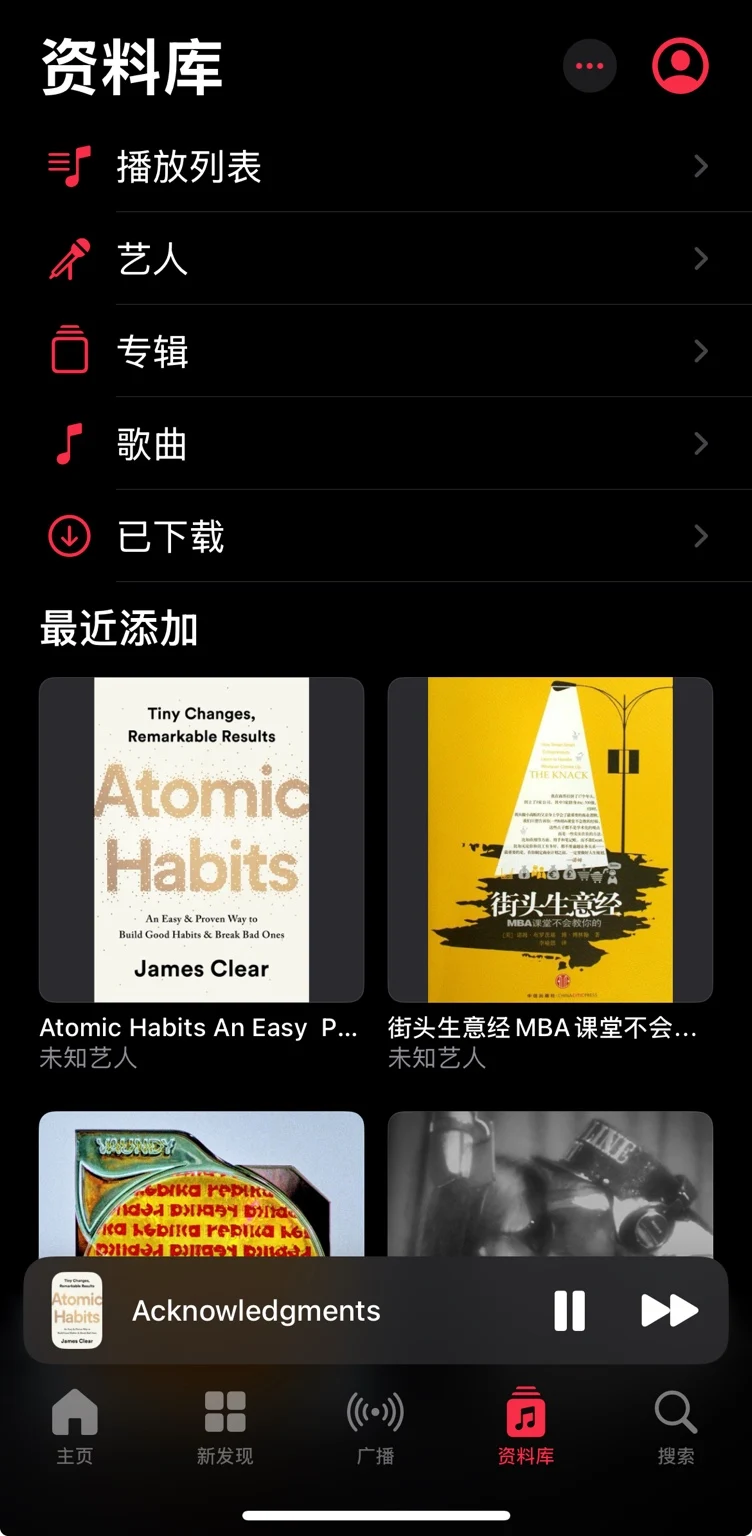
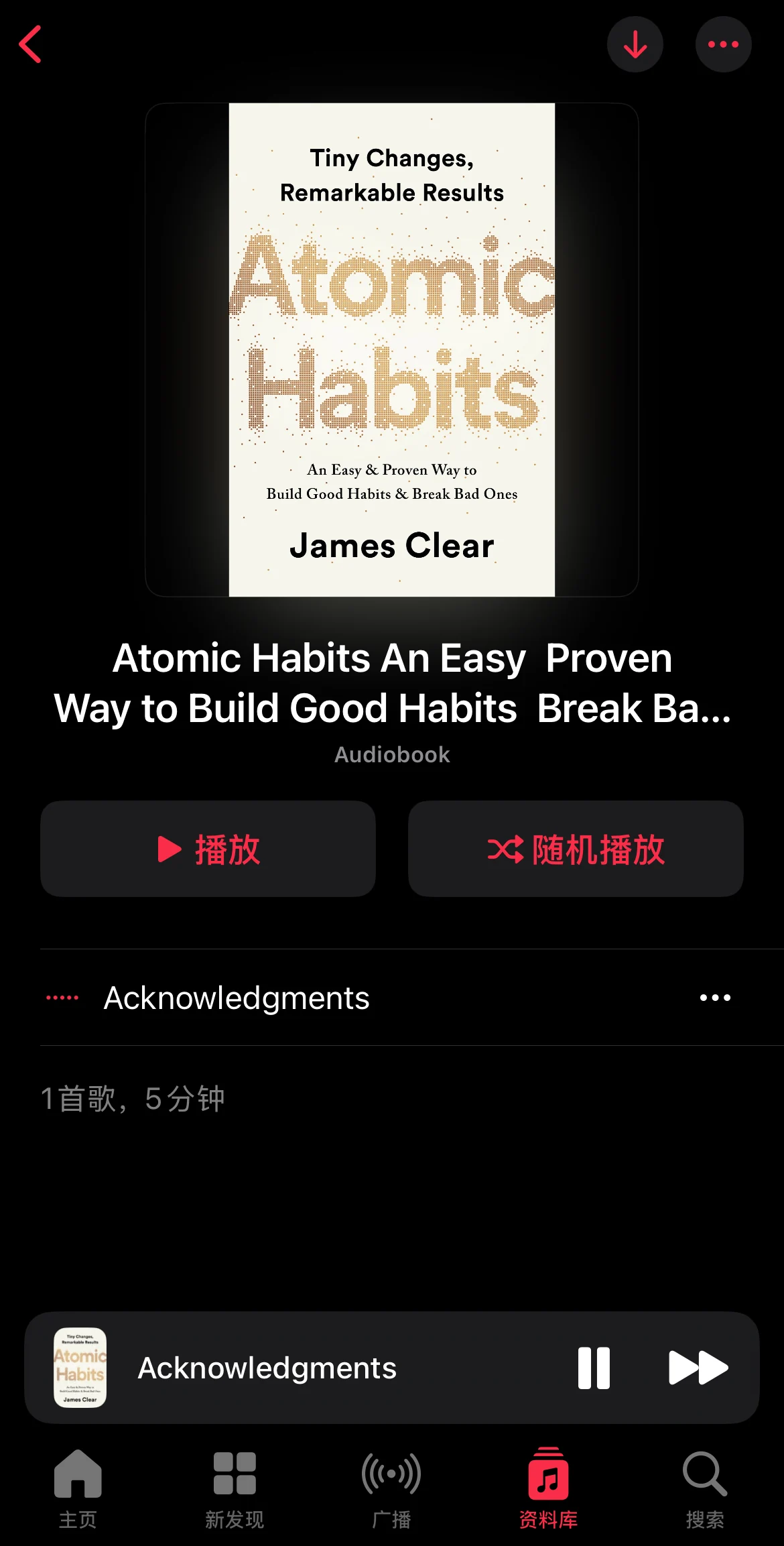
Open Music and go to Library → Albums, or find the cover under Recently Added. Open the album and tap a chapter, or tap Play to listen in order. The example album contains one synced chapter.
Use Sync Library over iCloud
With an Apple Music subscription, sign in to the same Apple Account on both devices. Import the MP3s into your music library. In iTunes, enable Edit → Preferences → General → iCloud Music Library, then turn on Sync Library in Settings → Apps → Music on your iPhone. After upload finishes, look for the album in Music on your iPhone. Manual music syncing may be unavailable while Sync Library is enabled.